
FieldFindings Professional
Assess facilities, document risks and evidence, plan corrective actions, and prepare reports.
Explore FieldFindingsFieldFindings Professional gives security practitioners one structured Windows workspace for assessments, evidence, corrective actions, and polished reporting.
Watch how FieldFindings Professional brings security assessments, evidence, findings, corrective actions, and professional reporting into one structured Windows workspace.
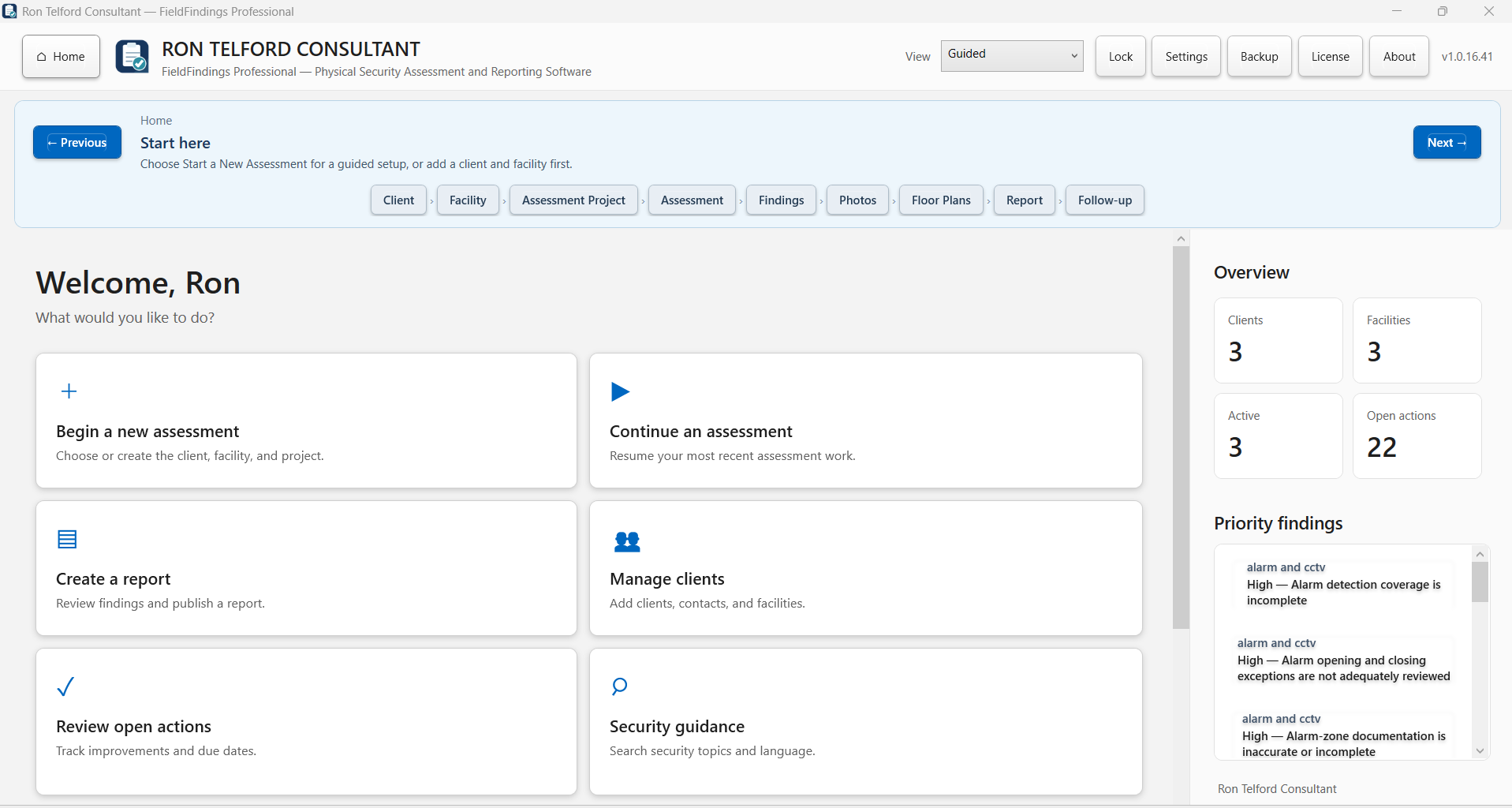
FieldFindings Professional is a structured Windows workspace for physical-security assessments. Begin from the home dashboard, organize clients, facilities, and assessment projects, and select the parts of the site that are in scope.
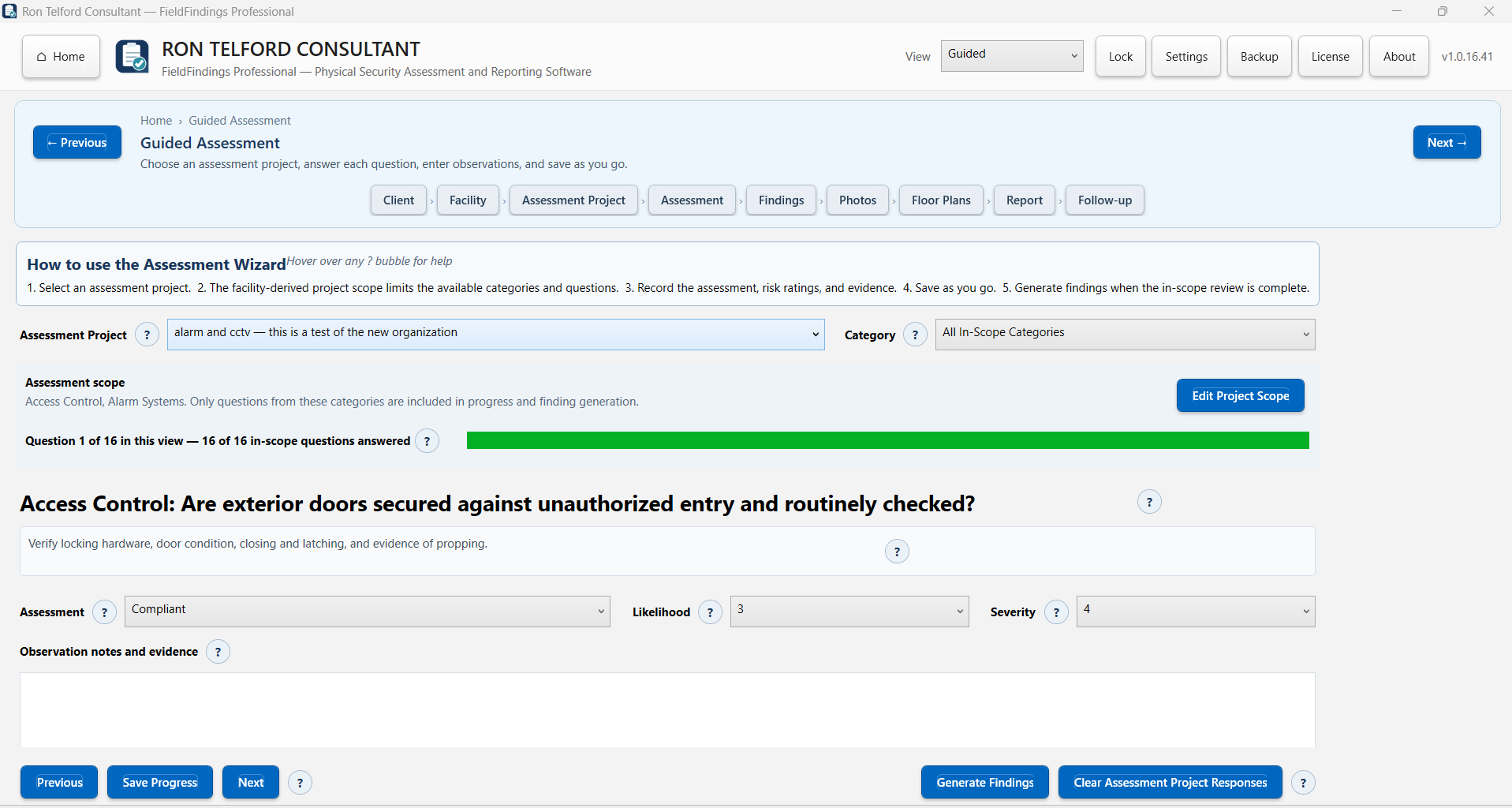
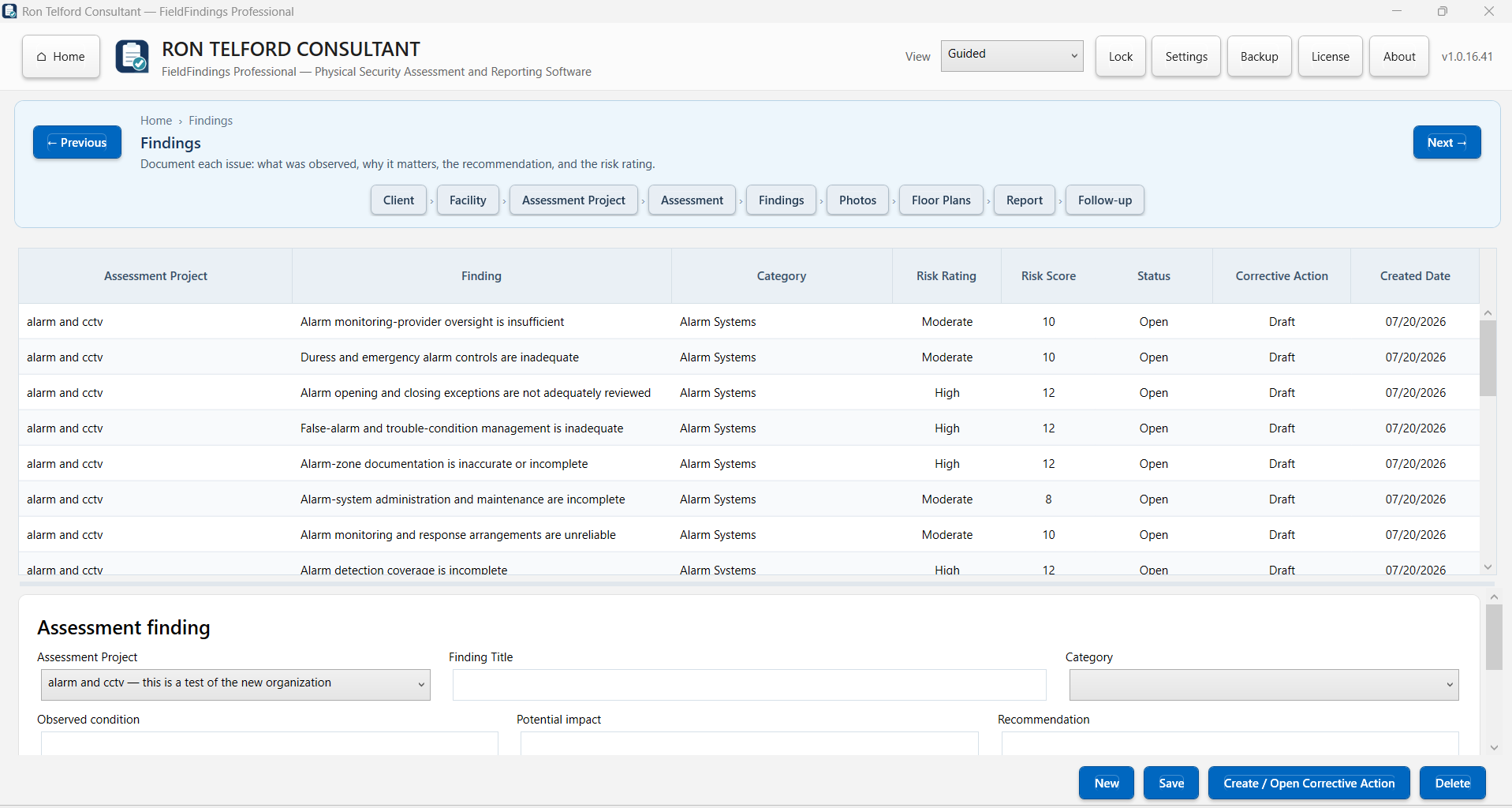
Use the guided assessment to work through relevant questions, record observations, and evaluate likelihood and severity. Turn documented concerns into findings, connect photographs and supporting documents, and keep floor plans and evidence with the assessment record.
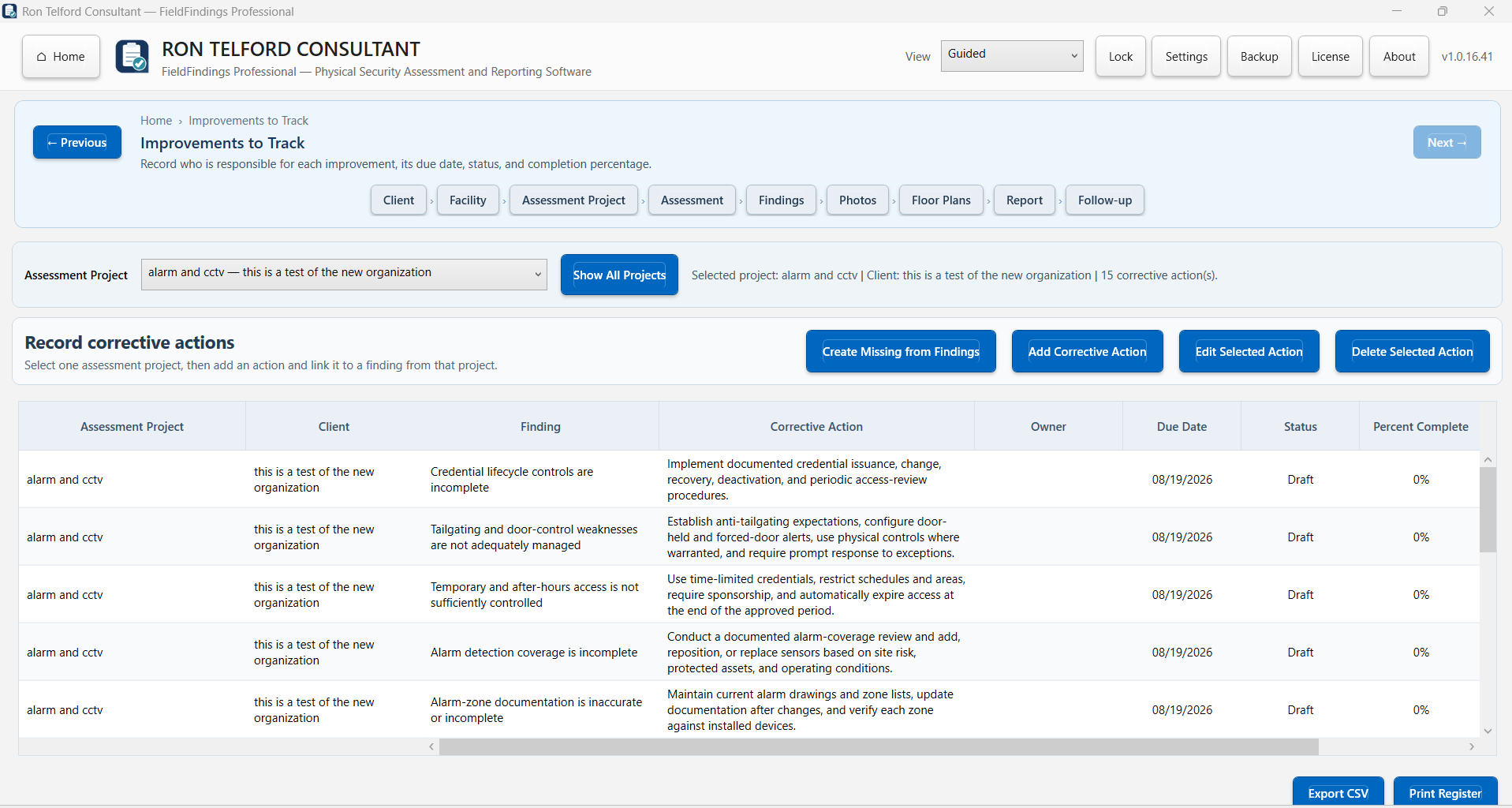
Review findings by priority, assign and track corrective actions, and prepare a professional report that brings the scope, observations, risks, recommendations, and supporting material together. Encrypted backup tools help protect and restore the assessment data when needed.
Both products share a focus on disciplined records, clear findings, and professional reporting while remaining separate applications.
Assess facilities, document risks and evidence, plan corrective actions, and prepare reports.
Explore FieldFindingsManage cases, witnesses, allegations, interviews, evidence, findings, and investigation reports in a guided, secured Windows workspace.
Explore WorkplaceFindingsReplace scattered notes, disconnected photographs, and improvised reports with a repeatable professional process.
Work through structured questions while keeping engagement scope and observations organized.
Connect conditions, risk context, photographs, supporting files, and recommendations.
Convert findings into practical actions and track remediation progress.
Create consistent reports without rebuilding the document from scratch.
Protect and restore working data through a controlled backup and recovery workflow.
Purchase once for one activated computer, with routine offline use after activation.
The screens use demonstration data. Select an image to open the full-resolution view.
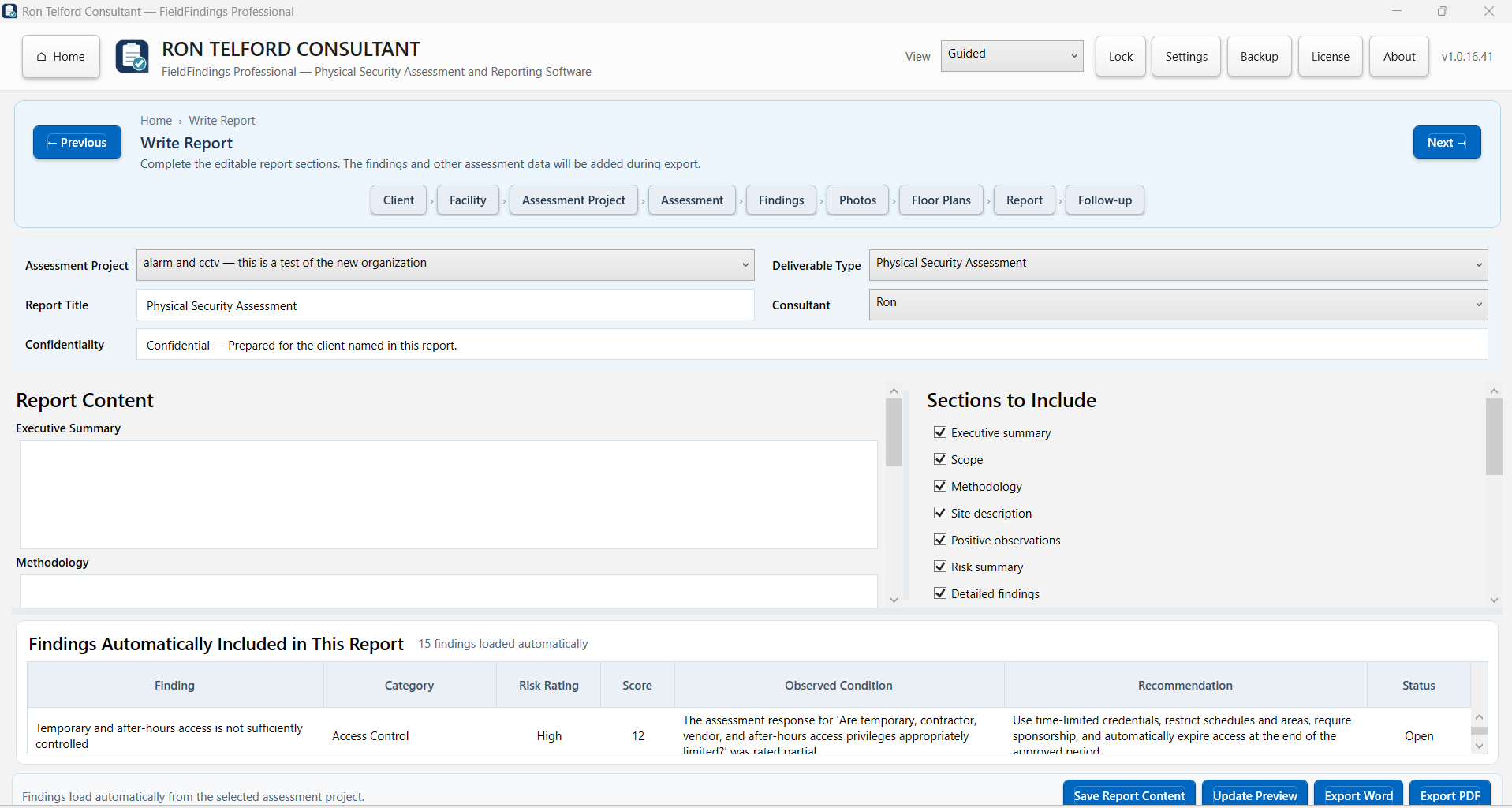
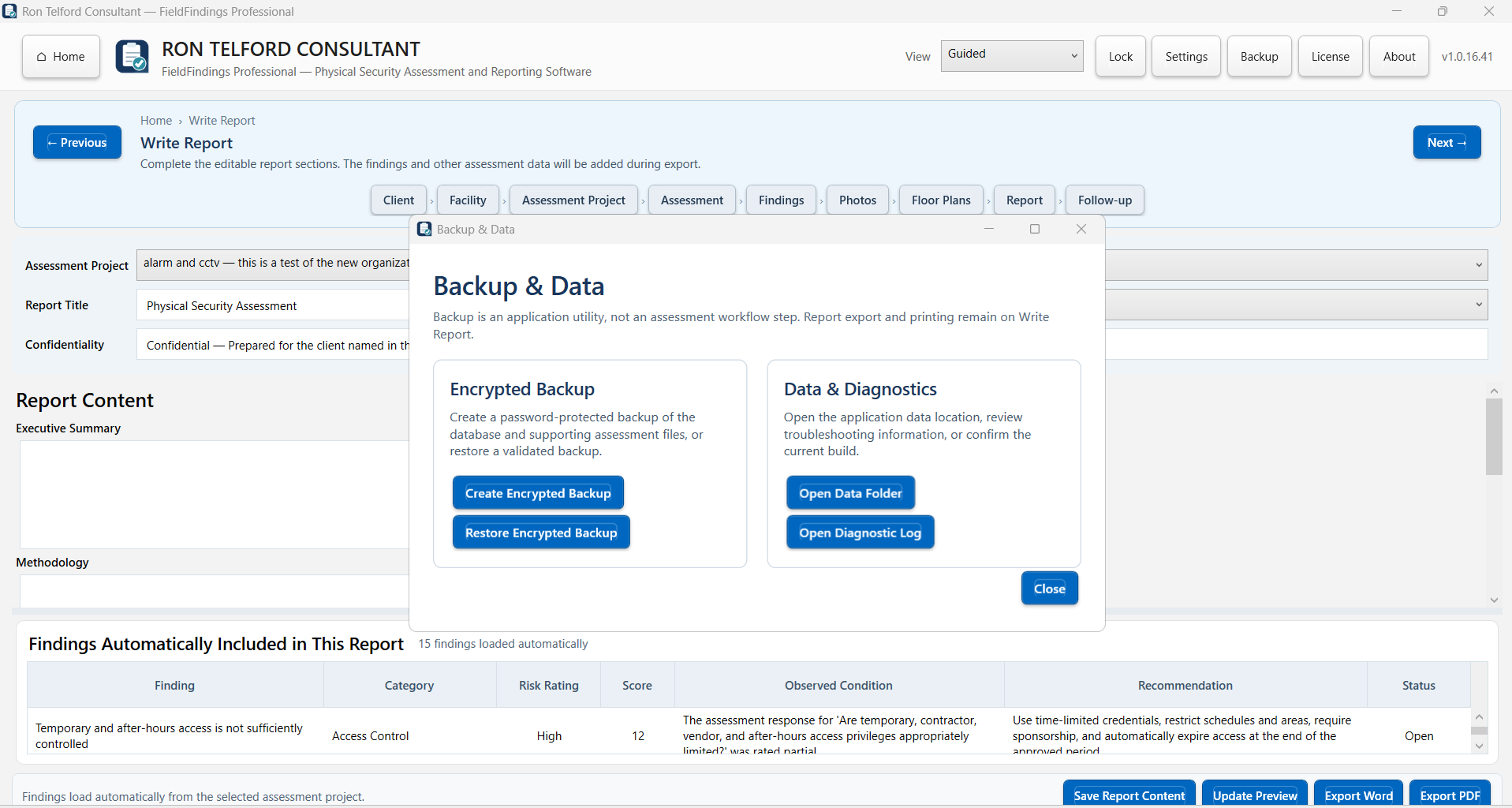
Keep the process understandable for the assessor and useful for the person receiving the final report.
Create the assessment and select the relevant scope.
Use guided questions and record observed conditions.
Connect risk statements, evidence, and recommended actions.
Generate the report and track corrective-action progress.
Download professionally branded forms for physical-security fieldwork. No purchase, account, or email address is required.
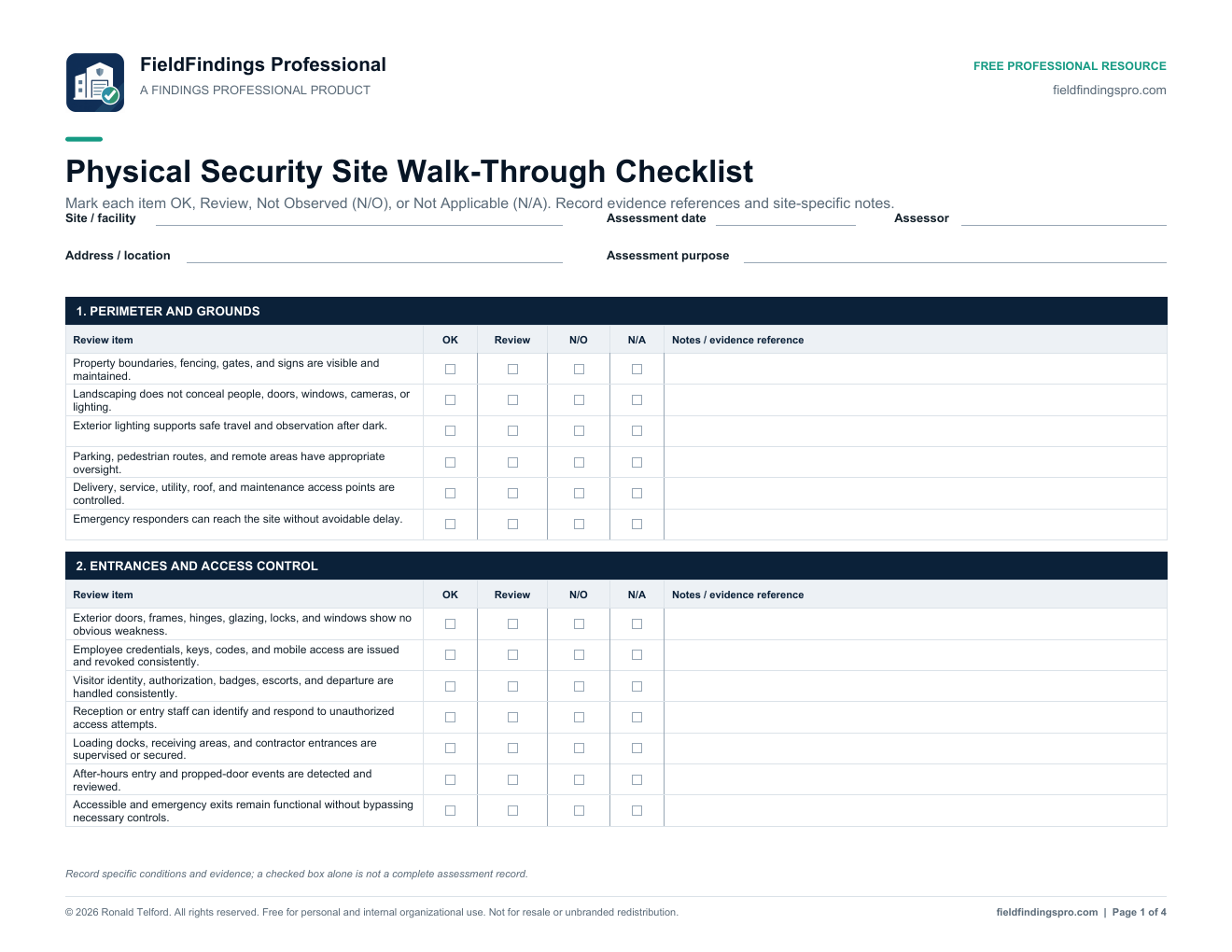
A structured four-page checklist covering perimeter conditions, entrances, access control, people and procedures, CCTV, alarms, emergency readiness, protected assets, and priority observations.
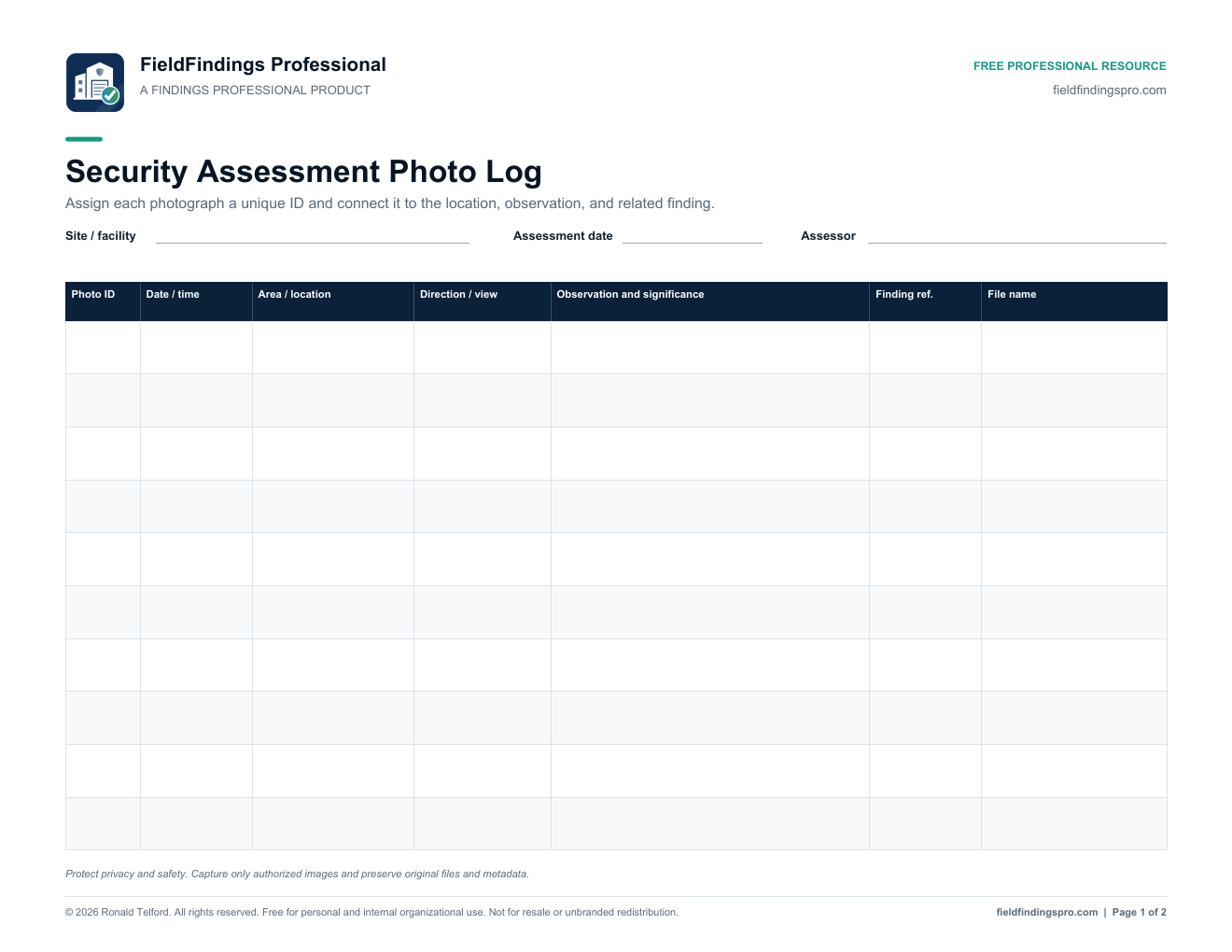
Assign every photograph a unique ID and connect it to the location, observed condition, related finding, original filename, and required follow-up.
These general-purpose resources support organized fieldwork but do not replace applicable codes, authorization requirements, site-specific risk analysis, or professional judgment.
A one-time perpetual software purchase rather than a monthly subscription.
No. It is a one-time perpetual license for the purchased major version.
No. Internet access is required for activation, but routine use is local.
Yes. Deactivate the original computer first or contact support for a verified replacement reset.
Assessment data stays in the customer-selected Windows data location.